
Part 1: Create FTP Account in cPanel
1.Login to cPanel
2.under file manager click on “ftp accounts” and fill out the following
Log in → Choose a username.
Password → Set a strong password.
Directory →
- If you want the user to access the whole website, enter
/public_html/. - If you want them restricted, enter a subfolder path (e.g.,
/public_html/project).
Quota → Choose Unlimited or set a limit.
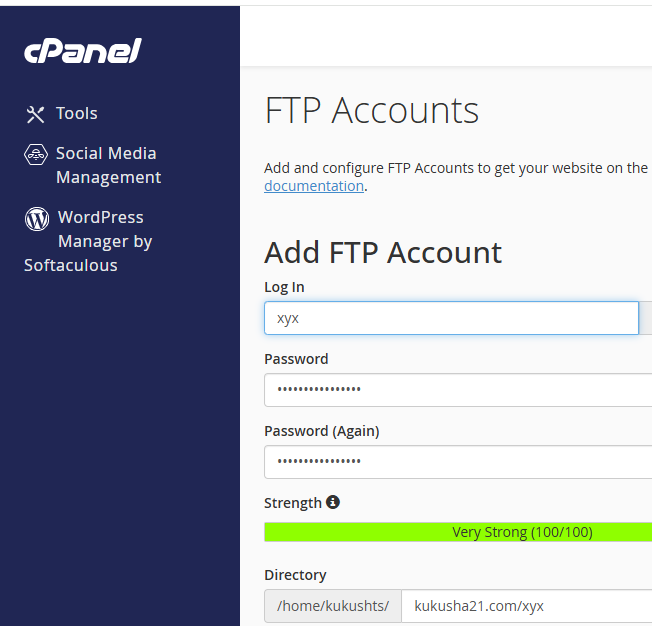
4.click on “create ftp account”
Part 2: Upload Files with FileZilla
1.Install FileZilla
2.Connect to Your Server
Open FileZilla → at the top bar (Quickconnect):and fill out the following details
Host → ftp.yourdomain.com (or your server IP)
Username → [email protected](the one you set when you create ftp account)
Password → the one you set
Port → 21
Click on “Quickconnect.”
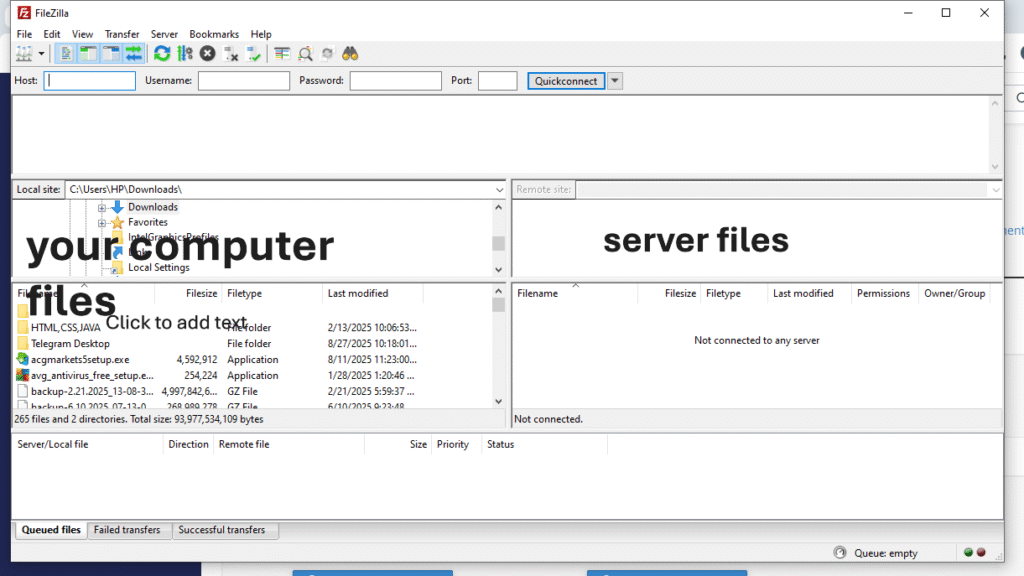
Now you can upload your files just by Drag & drop your files from left → right.
Done!!! now you just created ftp account and uploaded your files in cpanel successfully