
Are you wondering how you can upload your website files to your cpanel and dont know how?we got you covered simply follow our step by step guide and if you cannot make it contact our support Team
1 Login to your cpanel and select file manager from the files Tab
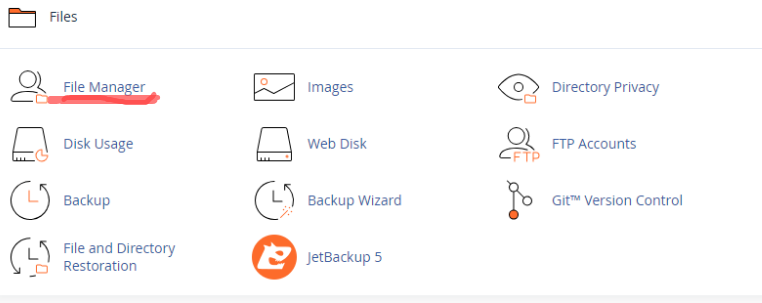
2 After clicking it you will find an interface which looks like in the image down below and select public/html folder…This is a directory which stores a frontend of your website to your visitors

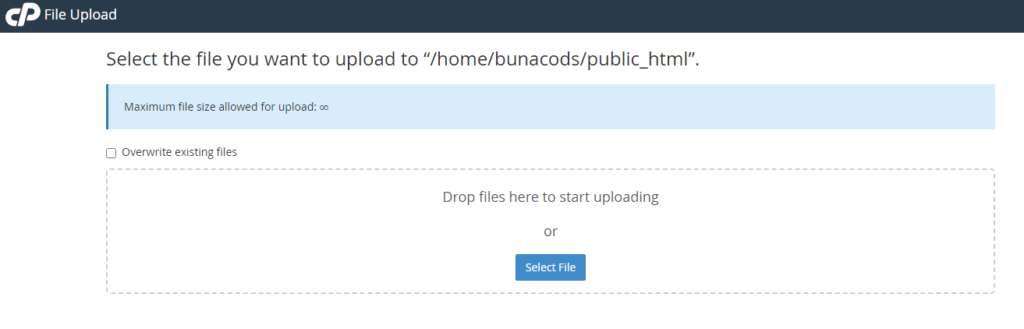
3.After selecting it there will be option which enables you to upload your website files and click it to upload your file as shown below

4 After clicking on upload, there will be an interface to drag and drop your website files right there
NB:-your site file must be in a zip format… If you had an already existing web file and wanted to change it with your new file, checkmark the overwrite existing file button to overwrite existing files.
5 After draging and droping your file or uploading it from your disk,the next steps should be unzipping your zip file by right clicking on the file you uploaded

6 now you will be able to see your front end of your website in the browser
method 2:-using FTP client
this type of method is preferable when you want to upload a big sized file or when you are having a frequent update of your developed system.
Here is how to upload your files using FTP(file transfer protocol)
1 first you need To download FTP client to your system(pc)…The most common one is filezilla…you can use other also it is up to you but filezilla makes it easier to get the job done and download it from Here
2 After clicking on the link above click download button but if you are on mac os there are options available by clicking show additional options on the website
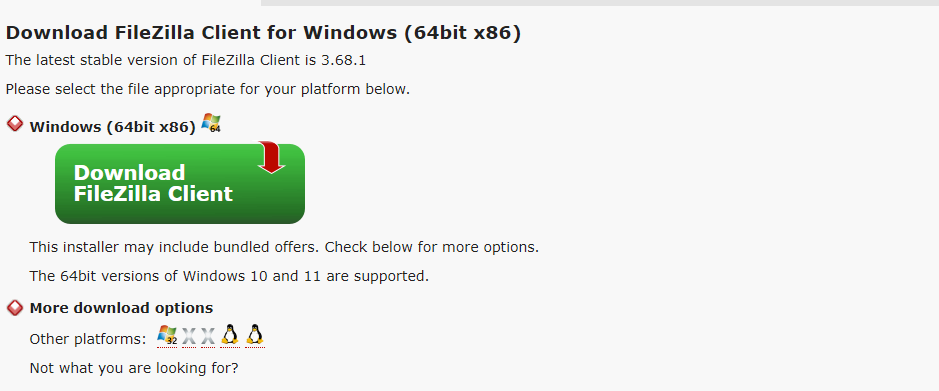
3 After downloading it you should install it to your system and makes it where you can access it easily
4 Now it is Time for you to have your FTP credentials from your cpanel account.To do this login to your cpanel and click on FTP accounts under files Tab
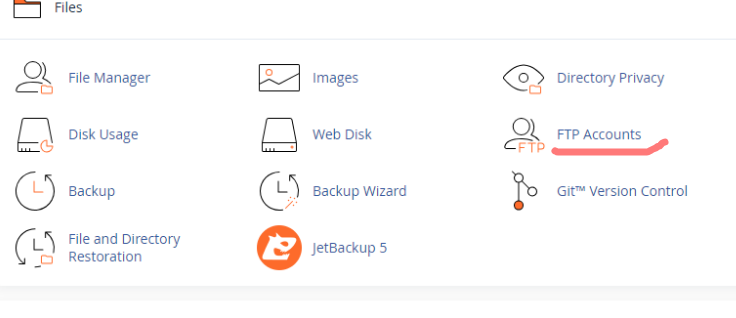
5 After the last step you need to create an FTP account which enables you to connect to your system.To do this you need to insert username and password and root directory which you will be accessing…you should leave it blank if you want to access the whole file in our file manager

6 after creating your account you need to know your port number and server and user name ..you will find them all on account by clicking configure

7 now open filezilla and click on file and then site manager
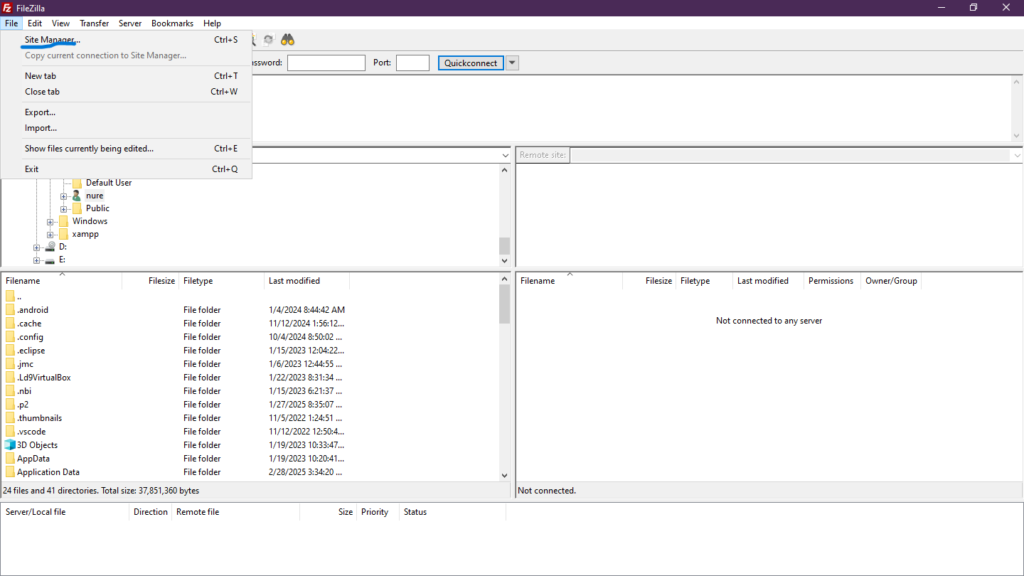
8 create and new site by clicking on new site

9 now fill your credentials you get from your cpanel and fill them correctly in use copy/paste method click connect
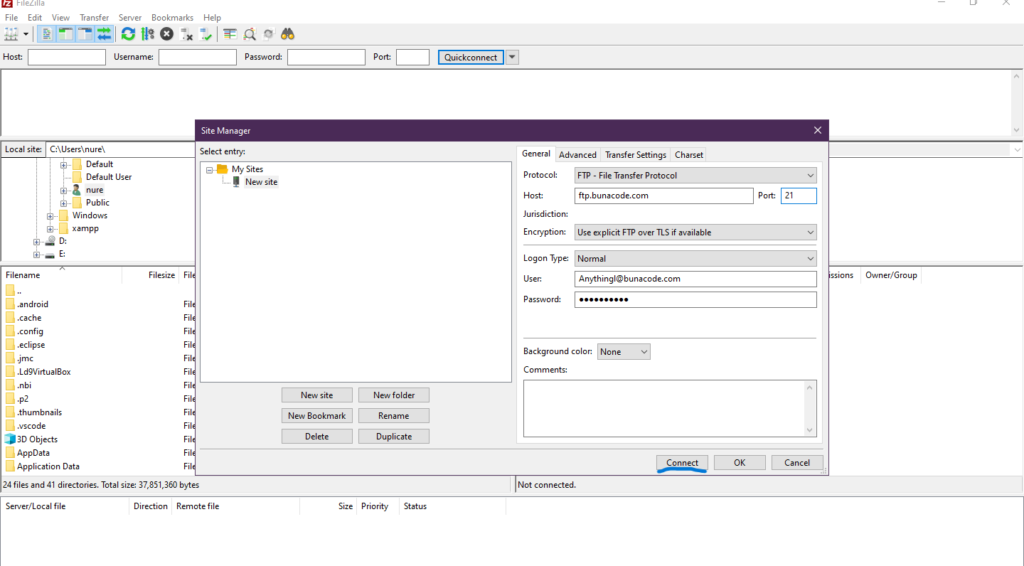
10 now you should be able to see your cpanel directory on the right side of filezilla window….sometimes you may be unable to establish connection .Try these two methods
A, remove the word FTP from the host and make it your domain name only
B,if there is “certificate is not matched “problem you should procced to the next step by clicking on accept
11 now you can Drag and drop your files from left to right and wait it to finish