

If WordPress or another application says a file is too large to upload, raise the PHP upload limit. You can do this yourself in cPanel, and the change applies immediately.
Raise the limit
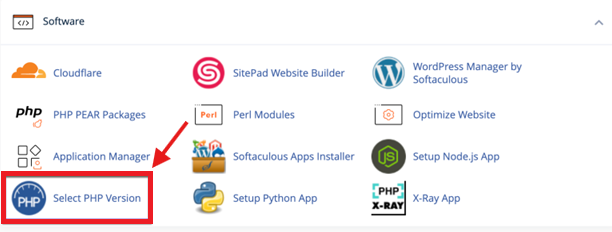
Step 1. In cPanel, open Select PHP Version in the Software section.
Step 2. Click the Options tab and scroll down to these settings.
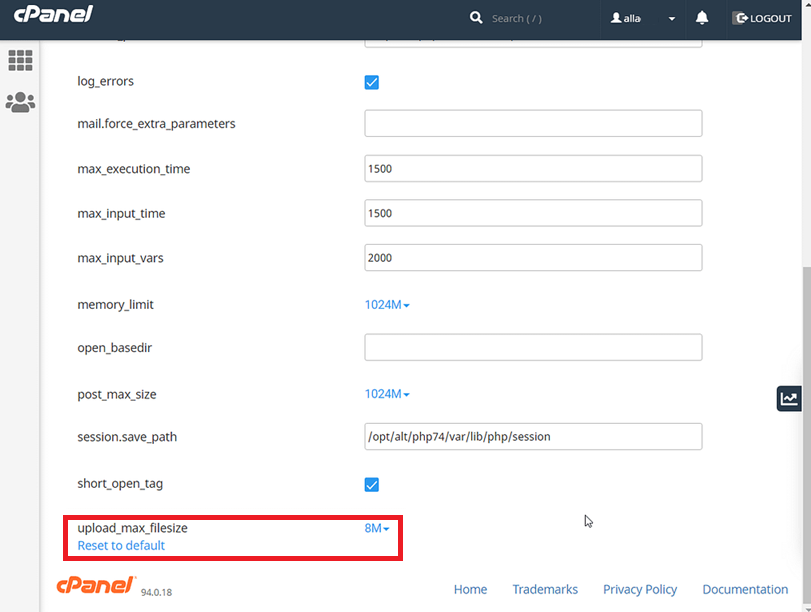
| Setting | What to set |
|---|---|
| upload_max_filesize | The largest single file you need to upload |
| post_max_size | The same value as upload_max_filesize, or higher |
| memory_limit | Raise it if large uploads stop with a memory error |
| max_execution_time and max_input_time | Raise them if slow uploads stop before they finish |
Step 3. Each value is saved as soon as you change it. Reload the upload page and try again.
If the file is still too large
- Upload very large files, such as backups, with File Manager or FTP instead of through WordPress. See How to Upload Your Website Files to cPanel Using File Manager and FTP.
- If your domain uses the Cloudflare proxy, uploads through the browser are limited to about 100 MB whatever your PHP settings are.
