
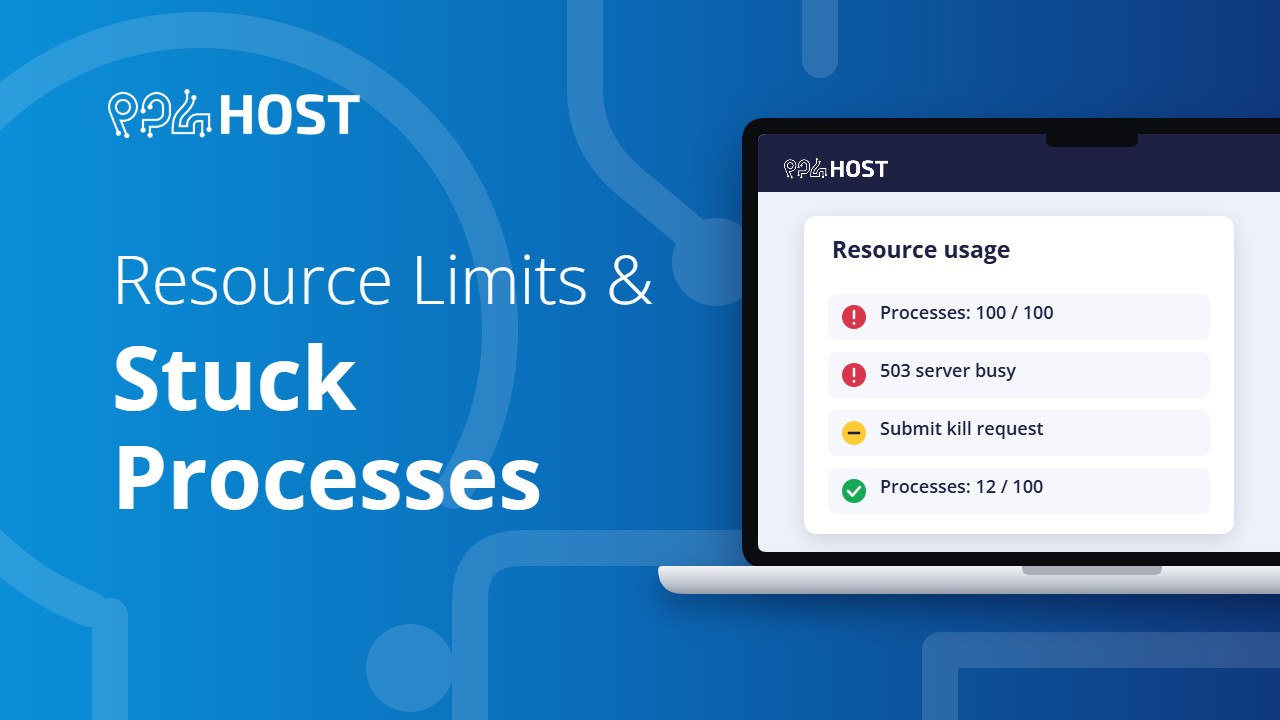
If your site shows a 503 page, your terminal says “unable to fork”, or cPanel shows processes at 100 / 100, your hosting account has reached one of its limits. Here is what that means and how to fix it yourself.
On this page
What the errors mean
- Processes at 100 / 100, “unable to fork” or “cagefs_enter”: the account is already running its maximum number of processes, so nothing new can start. The site, SSH and the cPanel Terminal stop responding.
- 503 “The server is temporarily busy, try again later!”: the account reached its limits for a moment. If it comes and goes, the account is running close to the limit.
- Database error 1040 “too many connections”: the account has more than 20 database connections open at the same time.
The limits on shared hosting
- 100 processes per account.
- 30 entry processes (requests being handled at the same moment).
- 20 database connections at the same time.
- 2 GB of memory on new plans.
These limits cannot be raised on shared hosting.
Step 1: Clear the stuck processes yourself
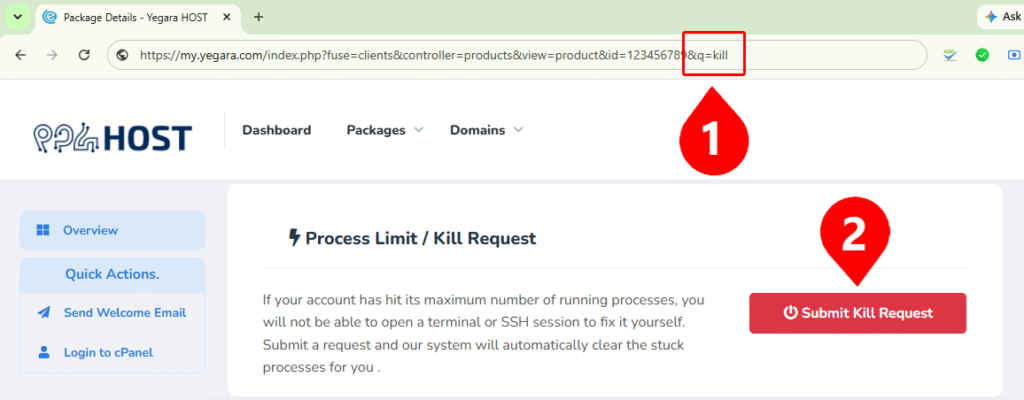
You do not need to wait for support. Submit a kill request from your Yegara dashboard and the stuck processes are cleared automatically. It works even when cPanel or the terminal is locked. Follow How to Submit a Process Kill Request.
Step 2: See what used the limit
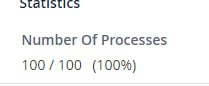
- In cPanel, the right-hand sidebar shows Number Of Processes as a count out of 100.
- Open Resource Usage and then Snapshot to see which scripts were running when the limit was hit.
Step 3: Stop it happening again
- Add time-outs to your scripts and database queries, so a slow request ends instead of piling up.
- Close database connections when you are done, or reuse them through a connection pool kept well under 20.
- Build on your own computer. For React, Vite or similar projects, run the build locally and upload the finished files instead of building on the server.
- Keep Node.js apps light. Run a single instance and avoid always-on background workers, which shared hosting does not support.
- Space out cron jobs so a new run does not start before the last one has finished.
If it keeps happening
An app that reaches the limits again and again has outgrown shared hosting. A VPS gives it its own resources. See What Each Yegara Hosting Plan Can Run.
