
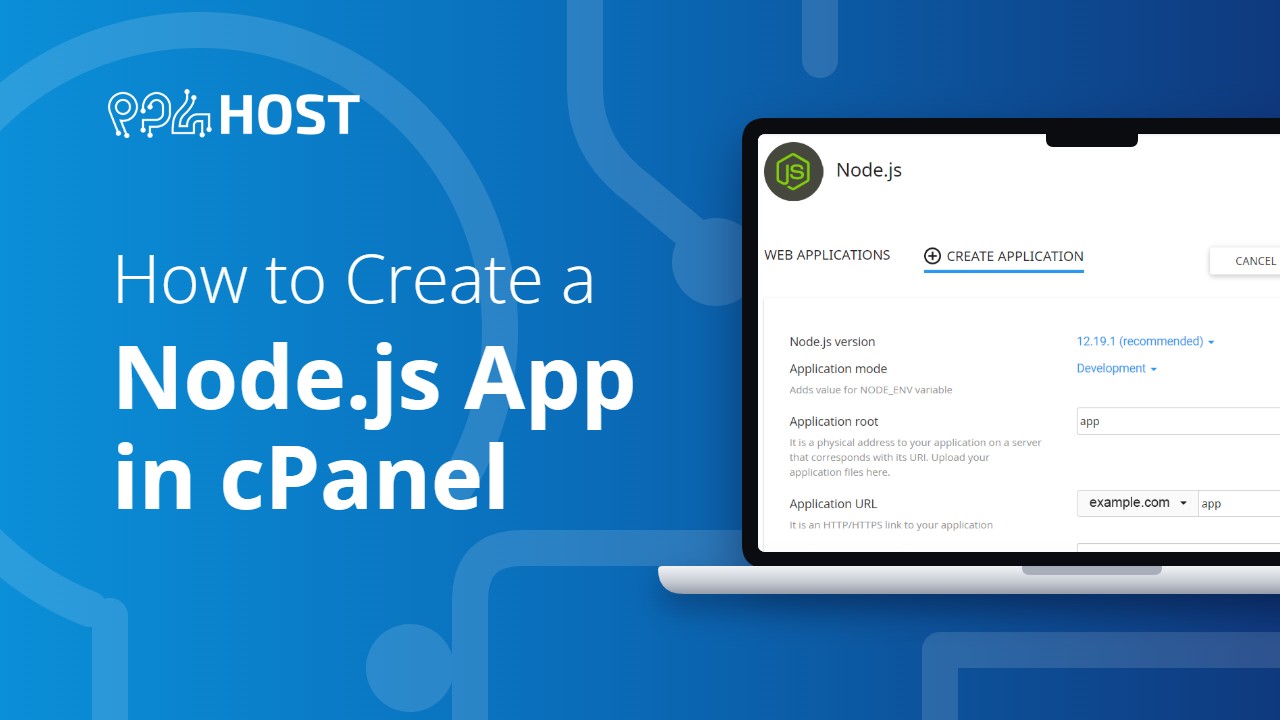
In this article, we’ll describe in detail how to work with Node.js apps and help you host your first basic “hello world” node.js application on our Premium hosting package. Node.js is not available on Standard hosting.
To set up a Node.js application using cPanel, use the following procedures.
Step #1: Create the application for NODE.JS
1: In the SOFTWARE section of cPanel, click the Setup Node.js App icon to open the Node.js selector:
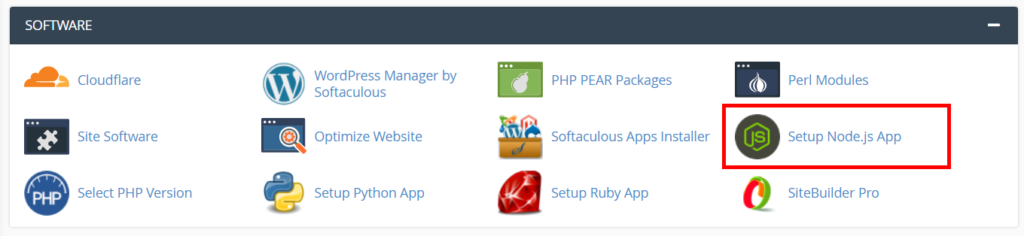
2: On the Node.js selector page, click CREATE APPLICATION to start the application.

3: Fill in the fields on the application setup form and click CREATE:

The application starts automatically. To view a test page for the application, click OPEN or the application url you set above ( example.com/app )
You should see the It Works! message appear.
Now that a working application is installed, you can enhance the environment with the package.json settings file. To do this, follow the next two procedures.
Step #2: Create the package.json file
To create the package.json file, follow these steps:
1: Open File manager In your cPanel

2: Go to the root of the application folder you just created and Click +File to create a new file named package.json

3: Edit the File you created to add the following code to it.
{
  "name": "app",
  "version": "1.0.0",
  "description": "My App",
  "main": "app.js",
  "scripts": {
    "test": "echo \"Error: no test specified\" && exit 1"
  },
  "author": "",
  "license": "ISC"
}
I hope this will help all the node.js tester to start their first node.js application with their first hello world application for node.js.
