

When your domain uses Cloudflare, visitors reach Cloudflare first and Cloudflare fetches the page from your hosting. This is the proxy, shown as an orange cloud. When you are chasing an SSL problem, an Error 522 or the wrong content, the proxy can hide the real cause. Turning it off for a moment sends visitors straight to your hosting, so you can see what the server itself returns.
Turn the proxy off
Step 1. Log in to your Cloudflare dashboard.
Step 2. Select the domain.
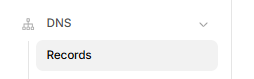
Step 3. In the left menu, click DNS, then Records.
Step 4. Find the record for your website, usually the A record for your domain and the one for www, and click Edit.

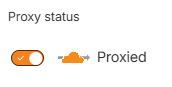
Step 5. Under Proxy status, click the orange cloud. It turns grey and the text changes from “Proxied” to DNS only.
Step 6. Click Save.
Check that it took effect
Once the cloud is grey, Cloudflare no longer stands between visitors and your hosting. The change takes a few minutes to spread. To confirm it, look up your domain and check that it now shows the IP address of your hosting, not one that belongs to Cloudflare.

Now open your site again. If the problem is gone, it was in the Cloudflare settings, for example the SSL mode. If it is still there, the cause is on the hosting side: see Common Website Errors and SSL and HTTPS.
Turn it back on
When you have found the problem, edit the record again and switch the cloud back to orange. Without the proxy your site loses Cloudflare’s caching and protection.
📘 Records that should always stay grey
Keep the mail record on DNS only. Cloudflare’s proxy does not carry email, FTP or SSH, so those stop working through an orange cloud.
