
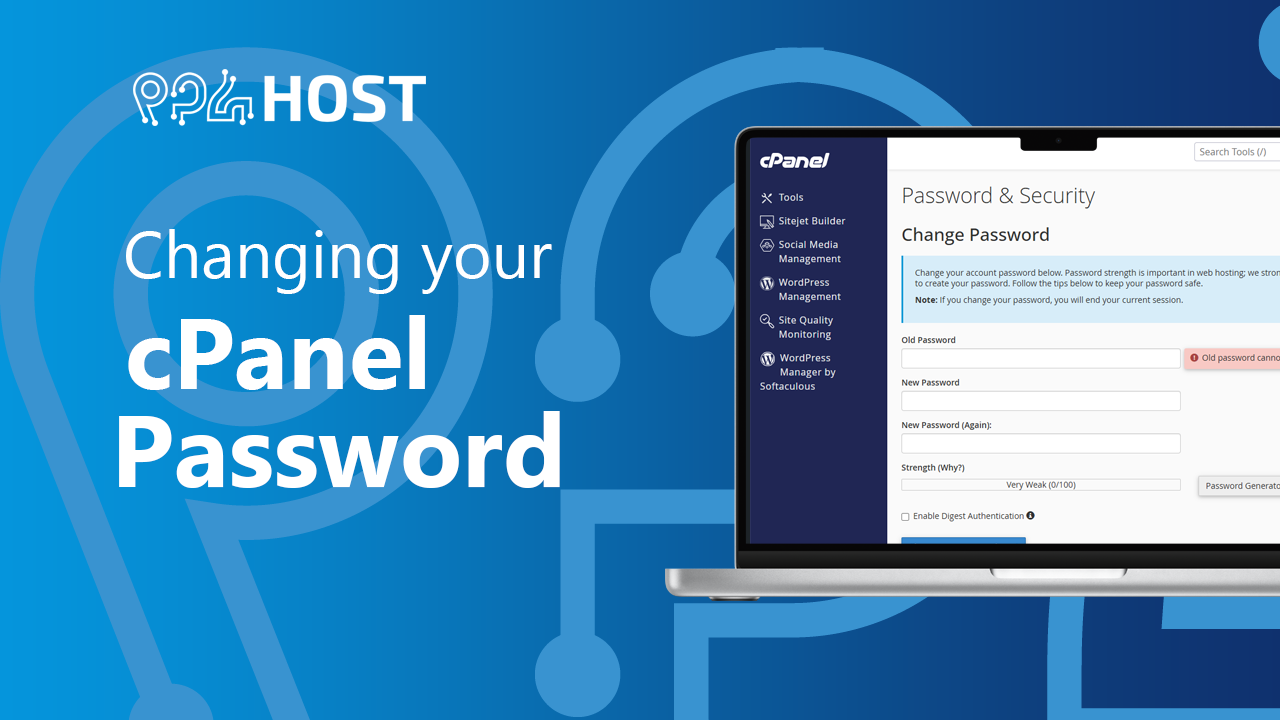
If you know your current cPanel password and want a new one, you can change it inside cPanel. The new password takes effect immediately.
📘 Forgot the old password?
You cannot use this page without it. Set a new password from your Yegara dashboard instead: see How to Reset Your cPanel Password.
Change the password
Step 1. Log in to cPanel.
Step 2. On the Tools page, in the Preferences section, click Password & Security.

Step 3. In the Old Password box, type your current password.
Step 4. In the New Password box, type the new password, and type it again in New Password (Again).
Step 5. Click Change your password now!
After you change it
- Update the password wherever it is saved, for example in your FTP program. The main FTP login uses the same password as cPanel.
- Your email passwords and your Yegara dashboard password do not change. They are separate.
- If you receive a notice that the password was changed and it was not you, reset it from your Yegara dashboard straight away and see Hacked or Flagged Site.
