

Your website files, email accounts and databases are managed in your hosting control panel. This guide shows where the login is, how to open the panel from your Yegara dashboard, how to reset the panel password yourself, and what to check when yourdomain.com/cpanel does not open.
On this page
- Which control panel do I have?
- Option 1: Open the panel from your Yegara dashboard
- Option 2: Use the login link from your welcome email
- Reset the control panel password yourself
- Login rejected after you changed the password?
- Why yourdomain.com/cpanel may not open yet
- Got a “password changed” email you did not expect?
- Keep your login safe
- Still cannot get in?
Which control panel do I have?
- Premium hosting: cPanel.
- Standard hosting and free .pro.et hosting: DirectAdmin.
- Domain only: there is no control panel, because there is no hosting yet. You can add hosting at yegara.com/host and choose “Use My Own Domain”.
Option 1: Open the panel from your Yegara dashboard
This is the easiest way, and it works even when your domain is not live yet.
- Log in to your Yegara dashboard at yegara.com/login.
- Click HOSTING & SERVICES.
- Click Manage next to your domain name.
- Under Quick Actions, click the login link for your control panel (Login to cPanel or Login to DirectAdmin).


You can also reach the same page from the top menu: open Packages, then My Packages, and click your package.

📘 Note
The Yegara dashboard only opens from inside Ethiopia. If you are abroad or using a VPN, use the login link from your welcome email instead (Option 2).
Option 2: Use the login link from your welcome email
When your hosting was activated, we sent an email with the subject “Your New Account Information” to your registered email address. Please check the spam folder too. It has your control panel username and password, and two login links:
- The domain link (for cPanel this is yourdomain.com/cpanel). It only works once your domain is pointing to your hosting.
- The server link (the second link). It works straight away, even before your domain is live. For cPanel it ends with
:2083and for DirectAdmin with:2222.
If you cannot find the email, open your package page in the dashboard and click Send Welcome Email under Quick Actions, or ask us in chat to send it again. For security it is only sent to your registered email address.
Reset the control panel password yourself
You do not need the old password, and you do not need to contact support. The steps are the same for cPanel and DirectAdmin.
- Log in to your Yegara dashboard at yegara.com/login.
- Click HOSTING & SERVICES.
- Click Manage next to your domain name.
- Under Password, click “Click To Change”.
- Enter the new password and click Save.

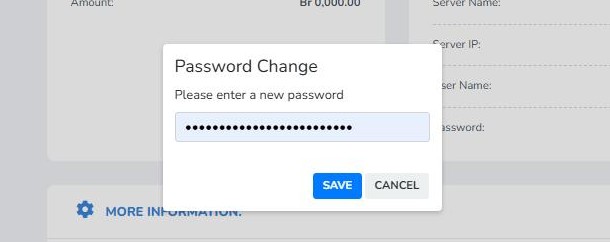
For the same steps with a video and more screenshots, see How To Reset Your cPanel Password.
- Forgot your Yegara dashboard password too? Use the “Forgot your password” link on the login page: How to reset Yegara dashboard password.
- Know your current cPanel password and only want a new one? You can also change it inside cPanel: Changing your cPanel password.
Login rejected after you changed the password?
- Copy and paste the username and password, and make sure there is no space at the start or the end.
- Use the control panel username from your welcome email, not your email address.
- Your browser may still be filling in the old saved password. Type the new one yourself.
- If the new password is not accepted, set a stronger one from your dashboard: longer, with letters, numbers and symbols.
Why yourdomain.com/cpanel may not open yet
- Your domain is new, or the nameservers were just changed. It can take from 5 minutes up to 48 hours before the domain works everywhere. Until then, use your dashboard (Option 1) or the server link (Option 2).
- Your domain points somewhere else. If the domain goes through Cloudflare, or its A record points to Vercel or another host, yourdomain.com/cpanel cannot reach our server. Use the server link.
- Your plan uses DirectAdmin. Standard and free plans do not have a /cpanel address. Use the DirectAdmin link from your welcome email or your dashboard.
- You ordered the domain only. A domain-only order has no control panel.
- The hosting is not active yet. After your payment is confirmed, the account details are sent by email, usually within about 10 minutes.
- The page opens for other people but not for you. Your IP address may be blocked by the server firewall. Restart your modem or router so Ethio Telecom gives you a new IP, or try mobile data, then open the page again.
Got a “password changed” email you did not expect?
That notification means the password was changed from inside cPanel, by someone who knows the current password. If it was not you or your team, reset the password from your Yegara dashboard right away using the steps above, and change any other passwords you use together with it.
Keep your login safe
Never send your control panel password in a chat or an email. If you already shared it with someone, change it.
Still cannot get in?
Send us your domain name and a screenshot of the exact error on Telegram, by email at [email protected], or call 0960 17 17 17.
