
We have provided you will all the tools you need to give you full control . Below you will find common issues you can run into and how you can use your yegara dashboard to resolve it.
On this page
- I Can Not SSH / Locked out
- Reset my root password?
- Reset root password (in rescue mode)
- Using Rescue System
- Reset my server to its delivery state?
- The difference between Reboot, Reset and Shutdown
NOTE: Rescue Mode and Web Console are not available on the VPS 25G Package
I Can Not SSH / Locked out
In the event that your server becomes unreachable, you can still access it via the web console in the yegara account. The most likely cause SSH refuses to connect is if SSH port is not allowed in your firewall when you were configuring it.
Login to your yegara account and navigate to your packages and click on manage.
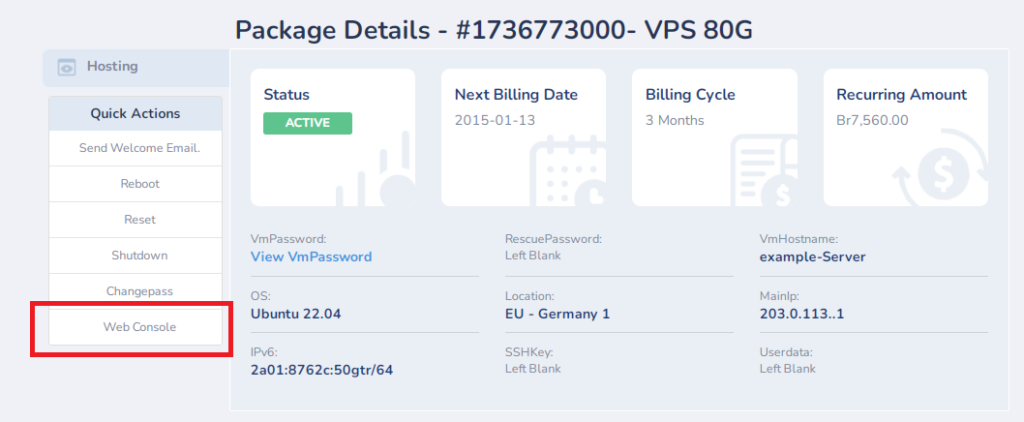
- click on Web Console
- This will open up a VNC console . VNC consoles allow you to connect to a server as if you were sitting directly in front of the device with keyboard and mouse.
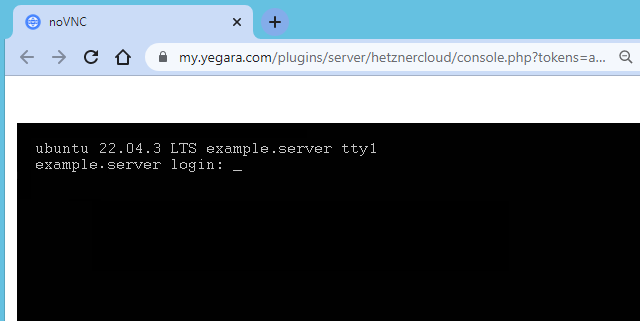
- Login as root using your root password
- once you are in you can allow SSH port in your firewall or Disable your Firewall completely
Important note: The Web console is provided as a tool for emergency situations, For regular management and maintenance of your server, we highly recommend using SSH as it is more reliable, efficient, and secure for day-to-day operations.
Troubleshoot : If you are still not able to SSH after disabling your firewall , We would therefore ask you to check the log files of your server. These may contain information that can give you further insight. Other actions you can take include using the rescue system or rebuilding your VPS
Reset root password?
If you want to set a new root password to your vps , Login to your yegara account and navigate to your packages and click on manage.
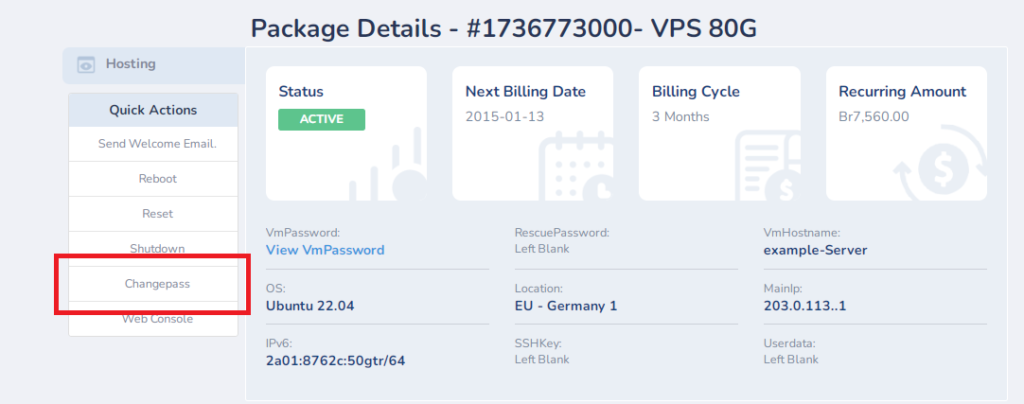
- Click on Changepass menu
- Reload The Page // !important
- Click on View VmPassword to get Your new Root Password
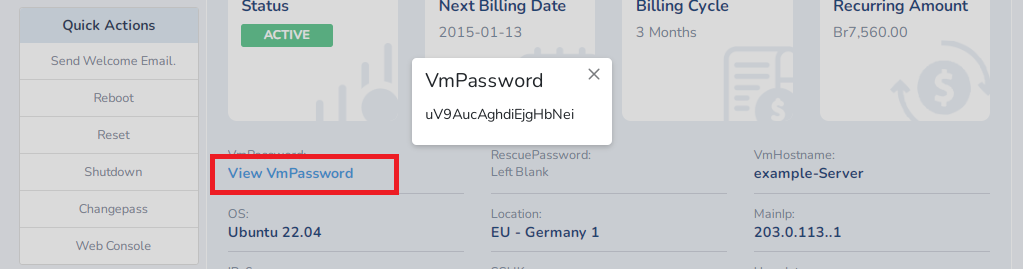
Troubleshoot: New Password Does Not Work : make sure you have reloaded the page to get the new root Password. If you still face the same issue , It is possible you have removed the qemu-guest agent from your server . you can follow the step below to change your password using the rescue system .
Using Rescue System
The Rescue System is a Debian based Linux live environment that allows you administrative access to your server, even if the installed system does not boot anymore. The environment starts using network boot (PXE) and runs in the memory of the server, without touching the drives or your data on them. This makes it possible for you to carry out repairs to the installed system, access the data on the drives, create backups, and to install operating systems. Plus, you can install any other software you need using the Rescue System.
To activate Rescue : Login to your yegara account and navigate to your packages and click on manage.

- add this at the end of the vps manage url
&q=rebuild - This will Display Hidden Menus
- click on RescueOn
- Click on Reboot
- Reload The Page // !important
- click on View RescuePassword

Now you can SSH Using the the password as a root user to the rescue system.
How To End Rescue : When you are done to end Rescue restart the server once again. Then, the system will boot from its local disk again.
Reset root password (in rescue mode)
If you have removed the qemu-guest agent from your server and ChangePass Menu is failing. you can set a new root password using the rescue system.
- Activate Rescue System
- Connect to your server via SSH with the rescue login details
- Run the following commands in Rescue:
mount /dev/sda1 /mnt
chroot /mnt
passwd
- Reboot your server and login with the new password
Reset my server to its delivery state?
Important note: All saved data will be lost.
In order to reset the server to its delivery state as new , Login to your yegara account and navigate to your packages and click on manage.
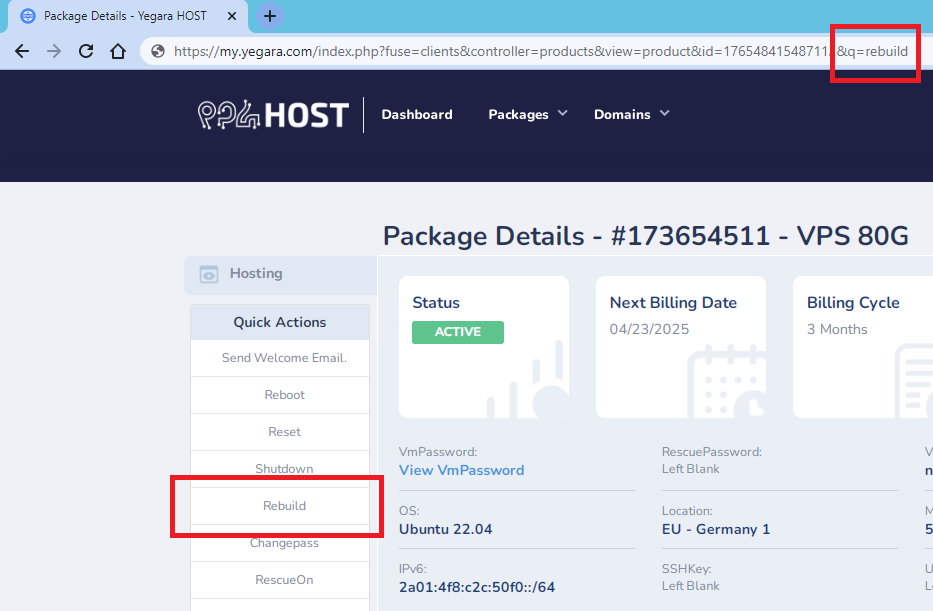
- add this at the end of the vps manage url
&q=rebuild - This will Display Hidden Menus
- click on Rebuild
- Wait 10 Min for the OS to Reinstall
- Set New root Password
The difference between Reboot, Reset and Shutdown
Reboot: Reboots a Server gracefully by sending an ACPI request. The Server operating system must support ACPI and react to the request, otherwise the Server will not reboot.
Reset: Cuts power to a Server and starts it again. This forcefully stops it without giving the Server operating system time to gracefully stop. This may lead to data loss, it’s equivalent to pulling the power cord and plugging it in again. Reset should only be used when reboot does not work.
Shutdown: Shuts down a Server gracefully by sending an ACPI shutdown request. The Server operating system must support ACPI and react to the request, otherwise the Server will not shut down.
