
Nameservers decide which company answers for your domain. Change them when you want to point your domain to Cloudflare, Vercel or another host, or to point it back to your Yegara hosting.
On this page
Before you start
- Get the nameservers from the service you are pointing to. You need at least two. For Vercel, for example, they are
ns1.vercel-dns.comandns2.vercel-dns.com. - If the service only gives you A or CNAME records and no nameservers, see How to Manage DNS Records. You can also move the domain to Cloudflare (free) and add the records there.
- A .et domain is changed at Ethio Telecom, not here. See How to Update Your .et Domain Nameservers at Ethio Telecom.
- A free .pro.et domain has no nameserver setting. You edit its records under Host Records instead.
Change the nameservers
- Log in to your Yegara account. Nameservers are changed here, not in cPanel or DirectAdmin.
- Go to your domain name and click Manage.
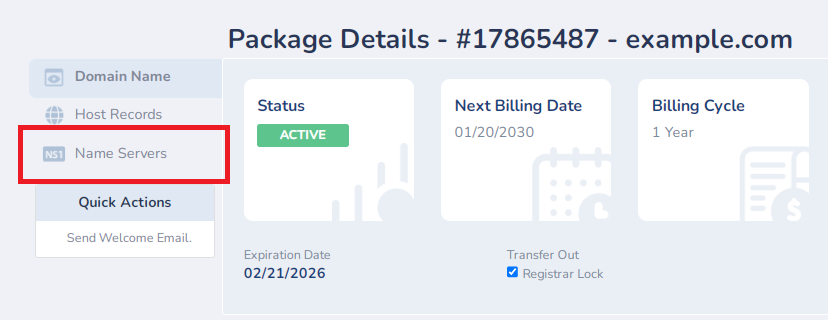
- Click Name Server.
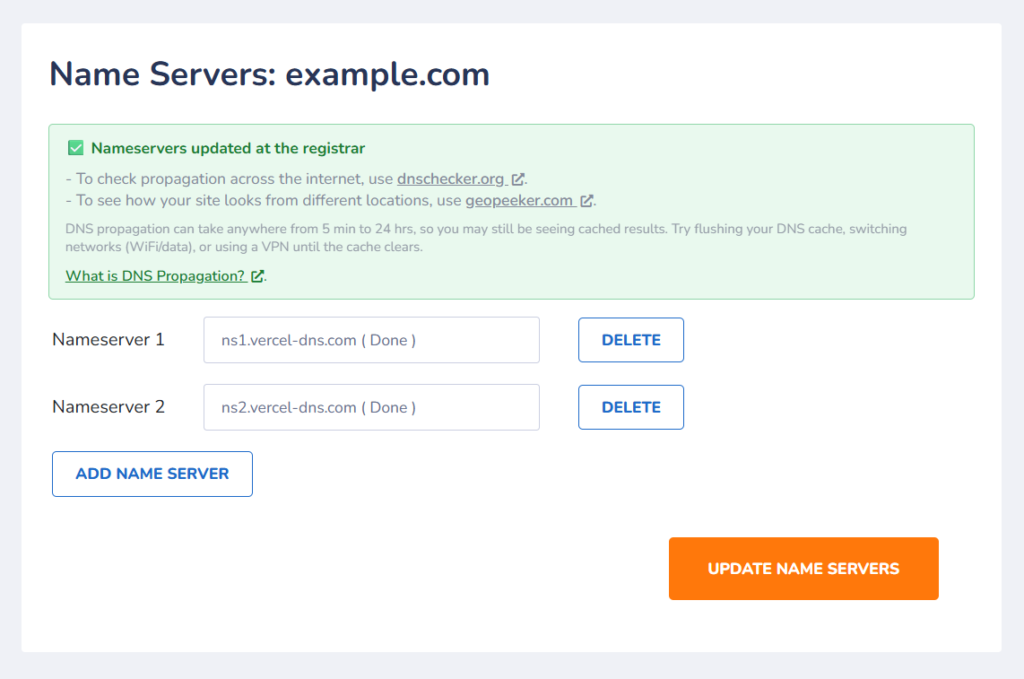
- Enter the new nameservers.
- Click Update Name Server to save.

What “Processing” means
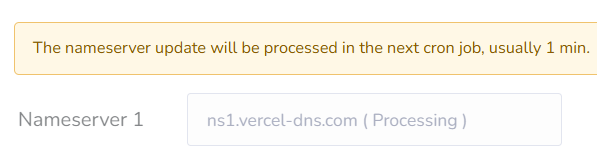
After you save, the change is queued and sent to the registry automatically, normally within a minute. The tag ( Processing ) is shown next to the nameservers until that is done. The tag can stay visible for a while after the change has already been applied, so check the result with a lookup, as shown below, instead of waiting for the tag to disappear.
The new nameservers then need time to reach the whole internet. This can take from a few minutes up to 48 hours. Read more about propagation.
Check that it worked
Look your domain up on intodns.com or dnschecker.org. When they show the new nameservers, the change has been applied.
Going back to your Yegara hosting
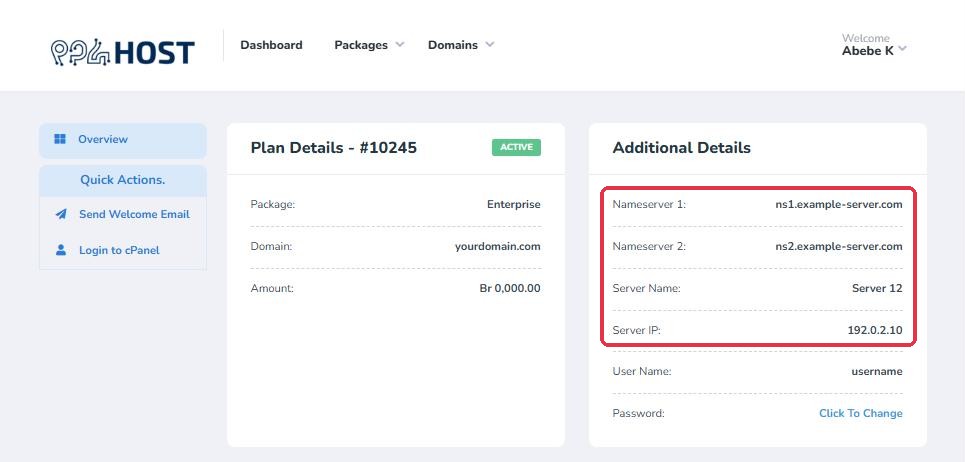
To point the domain back to your hosting, repeat the steps and enter the nameservers of your hosting server. They are listed in your welcome email (“Your New Account Information”). They are also shown in your dashboard: click Manage next to your hosting package and look under Additional Details for Nameserver 1 and Nameserver 2. If you cannot find them, send us your domain name in chat and we will tell you.
Troubleshooting
- The nameservers are not applying. Check each one for typing mistakes; they must be valid nameserver names. Enter the names only, such as
ns1.example.com, withouthttps://,wwwor a slash at the end. - The page says “The transfer for this domain has not completed.” The domain is still being transferred to Yegara, and its nameservers can be changed once the transfer is complete. See How to Transfer Your Domain to Yegara HOST.
- The domain is new. It must be registered before you can change it. Registration takes about 15 minutes after your payment is confirmed.
- The page will not let you change them, or it shows “Additional administrative review is required for this domain. Please contact our support team to complete your request.” Email the domain name and the nameservers you want to [email protected] from your registered email address, and we will update them. Your registered email address is the one on your Yegara account, where your invoices and renewal notices arrive.
- A lookup still shows the old nameservers after 48 hours. The change may not have gone through. Message us on Telegram with your domain name and we will check it.
- yourdomain.com/cpanel or webmail stopped opening. That is expected once the domain points to another service. Use the server link from your welcome email instead. To keep receiving email on your hosting, see Set Up MX Records to Receive Email.
- The domain expired. While a domain is expired its nameservers are reset. They are restored after you renew it.
