
A free .pro.et domain has no nameserver setting. You manage its DNS records yourself, in Host Records in your Yegara dashboard. This guide shows how to open Host Records, which record makes your site open, and what to check when the domain cannot be found.
On this page
What you can set
- A record: points the domain to a server’s IP address. This is what makes your website open.
- CNAME record: points a name, such as
www, to another name. - TXT record: holds a text value, used when a service asks you to verify that you own the domain.
Other record types and custom nameservers are not available on a free .pro.et domain.
Open Host Records
Step 1. Log in to your Yegara dashboard at yegara.com/login.
Step 2. In the top menu, open Domains, then My Domains, and click your .pro.et domain.
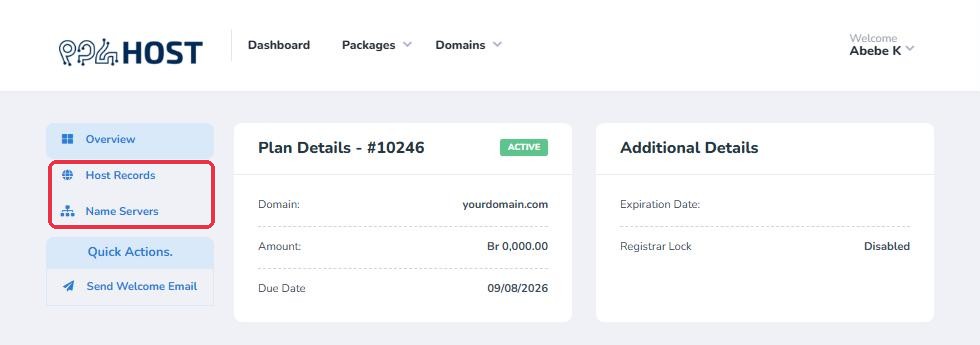
Step 3. In the menu on the left, click Host Records.
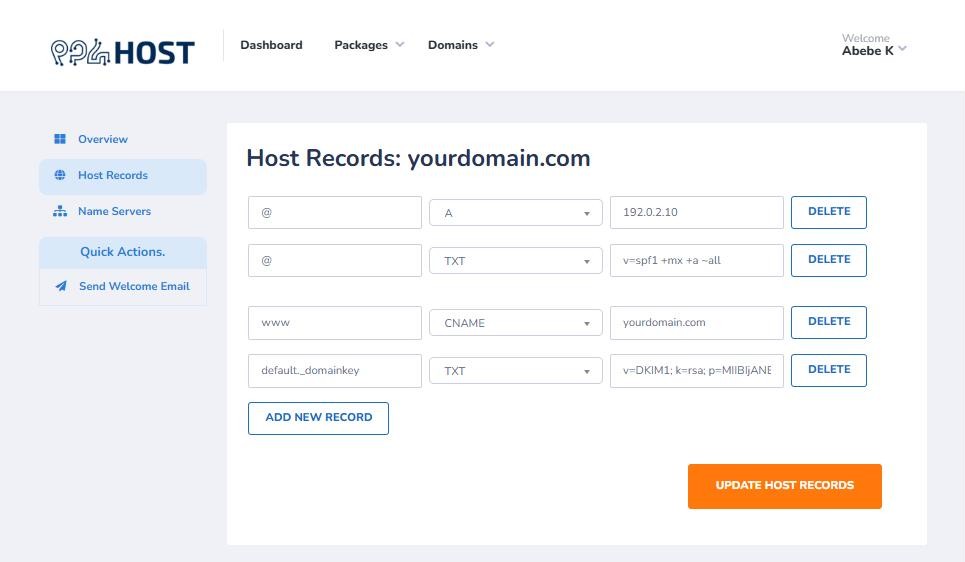
The page lists the records of your domain. Each row has a name, a type and a value.
Point the domain to your Yegara hosting
Your free .pro.et domain and its free hosting are two separate services. The domain only opens your website when it has an A record that points to your hosting server.
| Name | Type | Value |
|---|---|---|
| @ | A | The IP address of your hosting server |
| www | CNAME | Your domain, for example yourname.pro.et (optional, makes the www address work) |
Step 1. If there is already a row with the name @ and the type A, change its value. If there is none, click ADD NEW RECORD.
Step 2. Type @ as the name, choose A as the type, and enter the IP address of your hosting server as the value.
Step 3. Click UPDATE HOST RECORDS.
📘 Which IP address?
Use the IP address of the server your own hosting account is on. It is in your welcome email (“Your New Account Information”). Do not copy an IP address from another website or another account. If you are not sure, message us on Telegram with your domain name and we will set the record for you.
Point the domain to Vercel or another host
You can also use your .pro.et domain for a site that is hosted somewhere else, such as Vercel.
- Add your domain in that service. When it asks how to connect the domain, choose the option that gives you DNS records, not nameservers.
- In Host Records, add each record exactly as the service shows it: usually an A record for
@and a CNAME record forwww. - If the service asks you to verify the domain, add the TXT record it gives you. For Vercel the name is
_vercel. - Click UPDATE HOST RECORDS, then go back to the service and click its verify button.
A domain can point to one place at a time. Once the A record points to another host, the site on your free Yegara hosting no longer opens through the domain.
Save and wait
- Nothing is saved until you click UPDATE HOST RECORDS. Reload the page afterwards and check that your record is still there.
- A change can take from 5 minutes up to 48 hours to work everywhere. You can follow it on dnschecker.org.
- To remove a record, click DELETE next to it, then UPDATE HOST RECORDS.
If the domain does not open
| What you see | What it means | What to do |
|---|---|---|
| “This site can’t be reached” or the domain cannot be found | There is no A record yet, or the change has not spread yet | Check that the A record for @ exists, then wait |
| A page that says “Apache is functioning normally” | The A record points to the wrong server | Correct the IP address, or message us with your domain name |
| A default or empty page | The domain works, but your website is not uploaded yet | Upload your site to DirectAdmin |
| “Not secure” in the browser | The SSL certificate is not issued yet | See How to Issue SSL in DirectAdmin |
If it still does not open after the waiting time, message us on Telegram with your domain name and a screenshot of your Host Records page.
