

Welcome to Yegara HOST! Every new hosting account starts with a placeholder page, so your domain shows something until your own site is ready. It is a file named index.html in your public_html folder, and it looks like this:
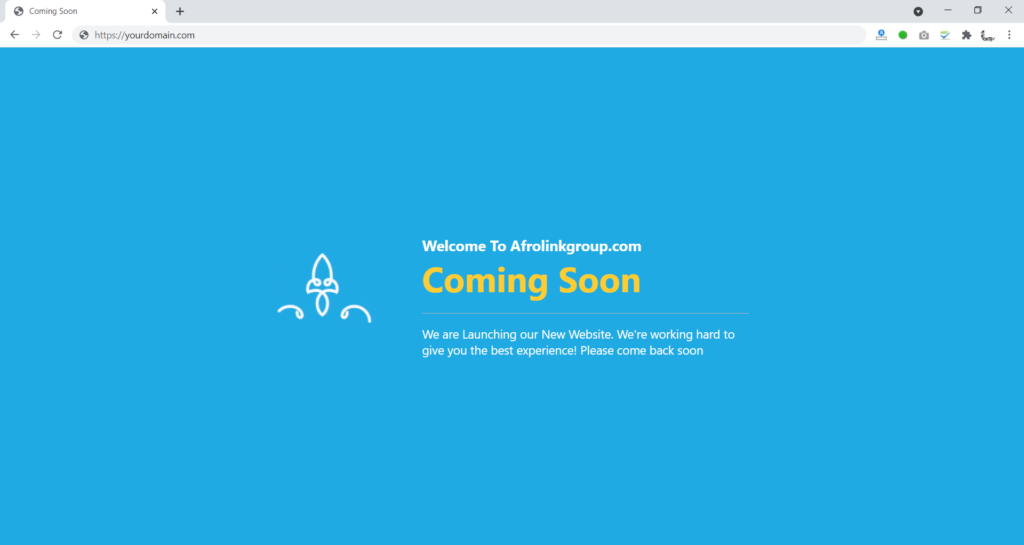
Seeing this page is good news: it means your domain and your hosting are working.
Why you still see it after adding your site
If you uploaded your website or installed WordPress and the Coming Soon page is still there, the placeholder file is still in the folder. The server shows index.html before anything else, so it wins over your own home page. Delete the file and your site appears.
Remove the Coming Soon page
Step 1. Log in to cPanel. You can open it from your Yegara dashboard or with the link in your “New Account Information” email.

Step 2. In the Files section, click File Manager.

Step 3. Click public_html in the left column.
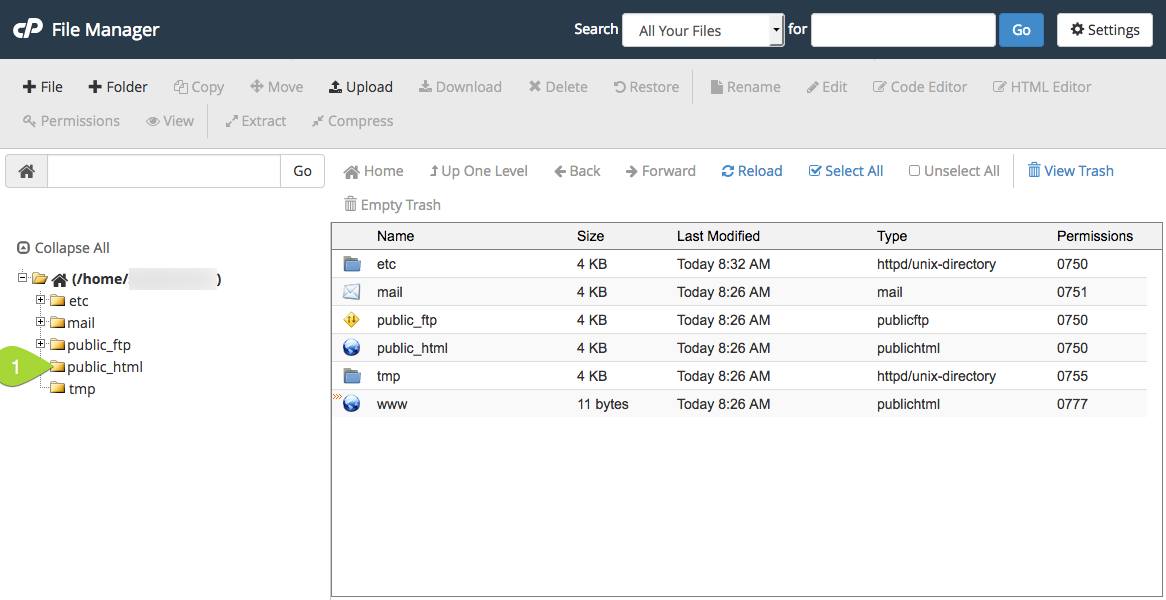
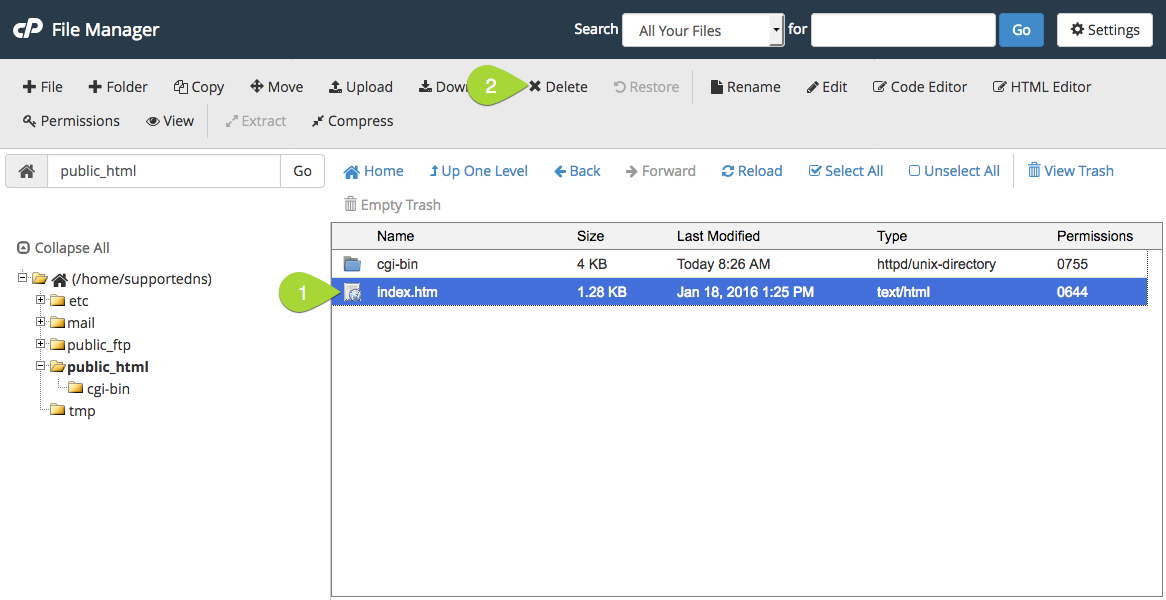
Step 4. Select the file named index.html and click Delete at the top of the File Manager.
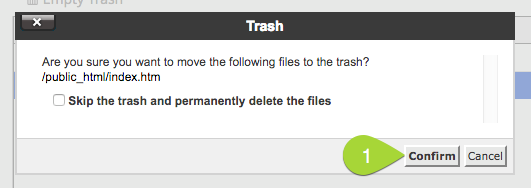
Step 5. Confirm. You can move the file to the trash or delete it permanently. The trash is safer, because you can restore the file if you change your mind.
On Standard hosting the steps are the same in the File Manager of DirectAdmin.
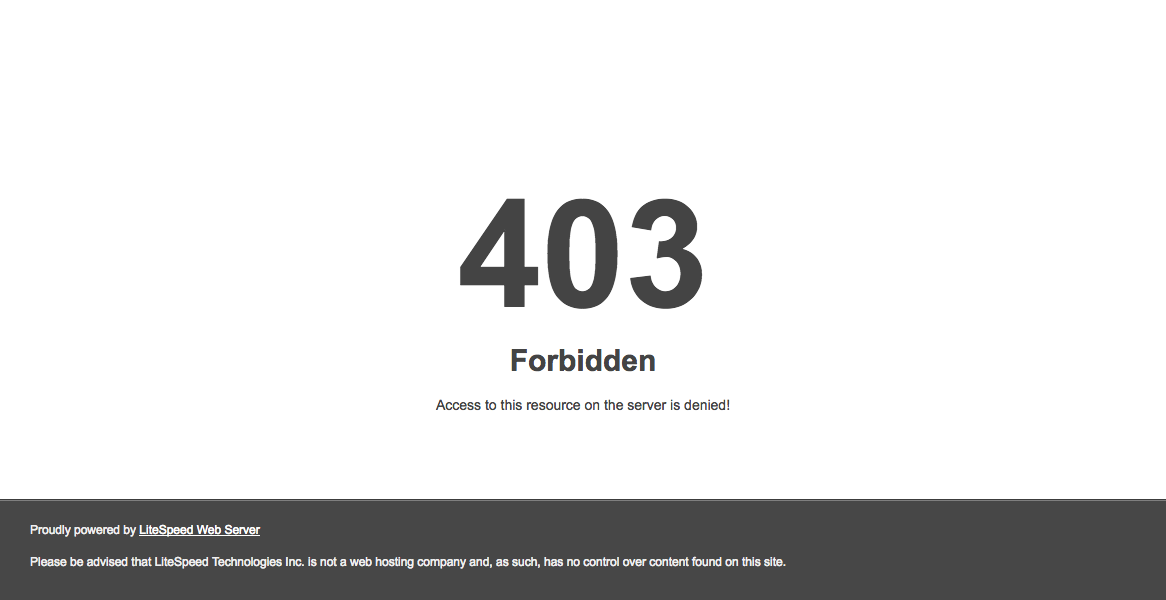
If you now see “403 Forbidden”
This means there is no home page file left for the server to show. Your site’s own index.html or index.php must sit directly inside public_html, not inside a subfolder. Upload your site or install WordPress, and the error goes away.
- How to Upload Your Website Files to cPanel Using File Manager and FTP
- How to Install WordPress in One Click
