
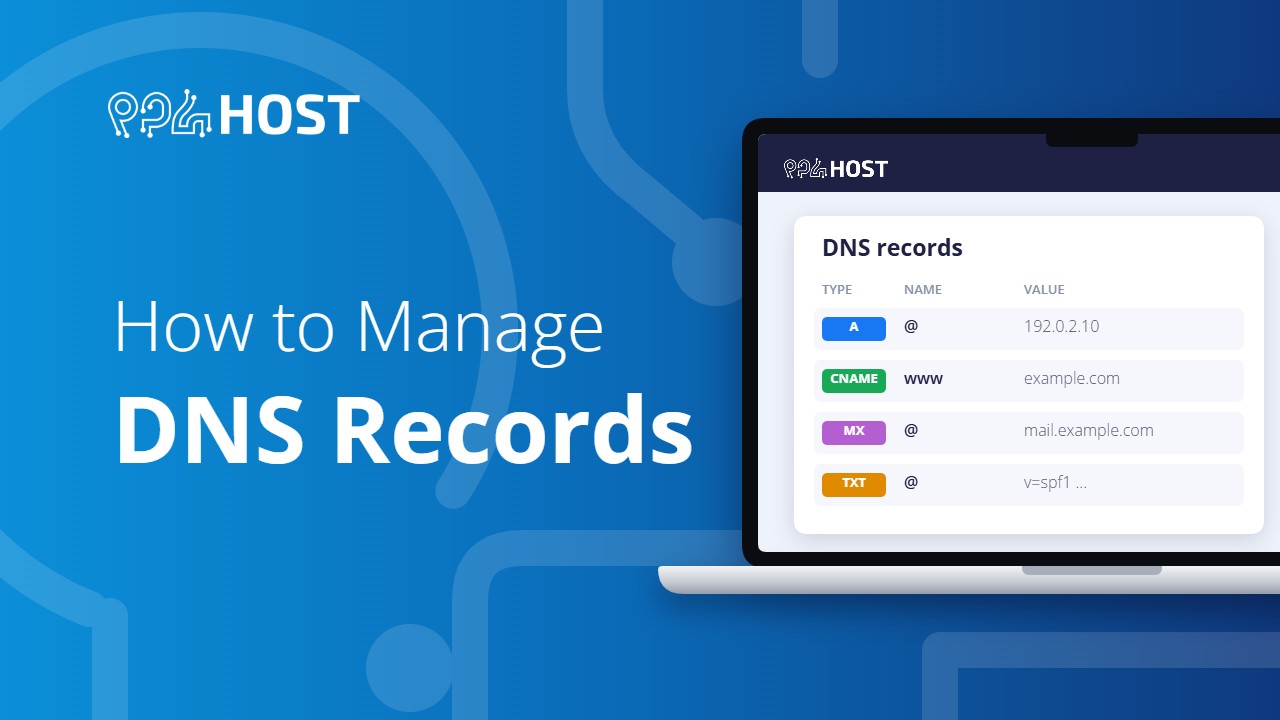
DNS records tell the internet where your website and email live. Where you edit them depends on what you bought and where your domain’s nameservers point. Find your case below.
On this page
📘 The rule
Records are always edited at the place your nameservers point to. If your domain uses Cloudflare’s nameservers, a record added in cPanel has no effect, and the other way round.
Where to edit your records
- Domain with Premium hosting (cPanel): in cPanel, go to Domains and open Zone Editor, then click Manage next to the domain.
- Domain with Standard hosting (DirectAdmin): in DirectAdmin, open DNS Management.
- Free .pro.et domain: in your Yegara account, go to Domains, open the domain and choose Host Records.
- Domain only, without hosting: there is no record editor. Change the nameservers to Cloudflare (free) and manage the records there. See How to Manage Your DNS Using Cloudflare.
- Domain using Cloudflare: edit the records in Cloudflare. If you turned Cloudflare on from your Yegara dashboard, see 1-Click Cloudflare.
- .et domain from Ethio Telecom: point its nameservers to your hosting first, then edit records in your control panel. See How to Update Your .et Domain Nameservers at Ethio Telecom.
The four records you will use most
- A record: points a name to a server’s IP address. This is what makes your website open.
- CNAME record: points a name, such as www or a subdomain, to another name.
- TXT record: holds text used to verify your domain or protect your email (SPF, DKIM). See How to Add TXT Records in cPanel.
- MX record: says which server receives email for your domain. See Set Up MX Records to Receive Email.
Add a record in cPanel
- Open cPanel and go to Domains, then Zone Editor.
- Click Manage next to your domain.
- Click Add Record and choose the type (A, CNAME, TXT or MX).
- Enter the name and the value exactly as the other service gave them to you, then save.


Point your domain to Vercel or another host
You have two ways to do it:
- Change the nameservers to the ones the service gives you. See How to Update Your Nameservers.
- Keep your nameservers and add the records the service asks for, usually an A record and a CNAME.
Once the A record points elsewhere, yourdomain.com/cpanel and webmail no longer open through the domain. Use the server link from your welcome email. Leave the MX records as they are if you want email to stay on your Yegara hosting.
Free .pro.et domains
To open the record editor, log in to your Yegara dashboard, go to Domains, then My Domains, click the domain and choose Host Records.
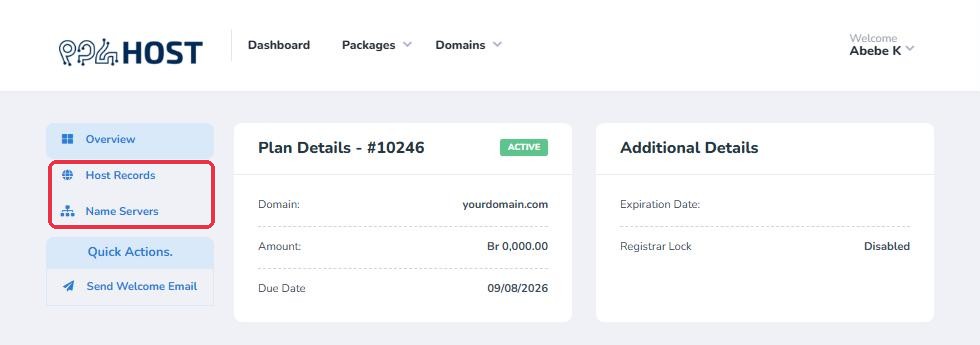
Change a value or click ADD NEW RECORD, then click UPDATE HOST RECORDS to save.
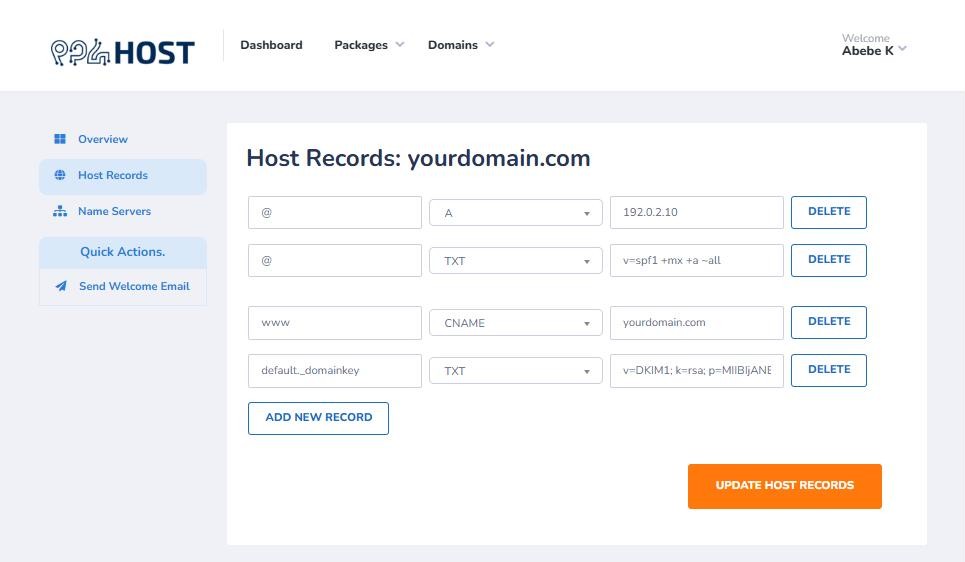
- Host Records supports A, CNAME and TXT records.
- For your site to open, the A record for
@must point to the IP address of your hosting server. If your new .pro.et domain cannot be found, tell us in chat and we will check this record. - Using Vercel? Add a TXT record with the name
_verceland the value Vercel shows you, save it, then verify the domain in Vercel.
How long changes take
A DNS change can take from a few minutes up to 48 hours to reach everyone. You can follow it on dnschecker.org. See How Long Does Domain Propagation Take?
