
Most WordPress problems on hosting come down to a handful of causes. Find yours below. Before you change anything, take a backup: see Backups and Restores.
On this page
I cannot log in to wp-admin
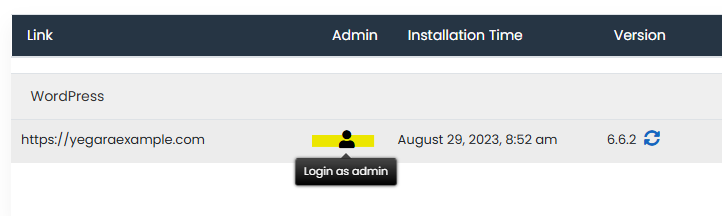
- Log in without the password. In your control panel open Softaculous, go to Installations and click the admin login icon next to your site. See How to Log In to WordPress Using Softaculous.
- Set a new password. In Softaculous click the pencil (edit) icon next to the installation, scroll to Admin Account, type the admin username and a new password, and save.
- A developer needs access. Do not share your password. See How to Create a Temporary Login for WordPress.
The site opens on the wrong address
After a domain change, a move from another host, or switching to https, WordPress can keep sending visitors to the old address. Open wp-config.php in File Manager and add these two lines above the line that says “That’s all, stop editing”, with your own domain:
define( 'WP_HOME', 'https://yourdomain.com' );
define( 'WP_SITEURL', 'https://yourdomain.com' );
If the site opens at yourdomain.com/wp, see How to Remove “wp” from the End of Your WordPress Site Address.
“Error establishing a database connection”
This is common after a restore or a move. Open wp-config.php and check these four values against your control panel:
DB_NAMEandDB_USER: the full names, including the prefix before the underscore.DB_PASSWORD: the password of the database user. If you are not sure, set a new one for that user in the control panel and put the same one here.DB_HOST:localhost.
More in Databases: MySQL and PostgreSQL on Your Hosting.
Only the home page works, other pages show 404
Log in to wp-admin, go to Settings, then Permalinks, and click Save Changes without changing anything. This rewrites the .htaccess file. If it is still broken, check that .htaccess exists in the site’s folder (turn on Show Hidden Files in File Manager settings) and contains the standard WordPress rules:
# BEGIN WordPress
<IfModule mod_rewrite.c>
RewriteEngine On
RewriteBase /
RewriteRule ^index\.php$ - [L]
RewriteCond %{REQUEST_FILENAME} !-f
RewriteCond %{REQUEST_FILENAME} !-d
RewriteRule . /index.php [L]
</IfModule>
# END WordPress
A blank page or “There has been a critical error”
A plugin or the theme is failing, often after an update or a PHP version change.
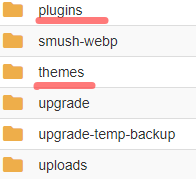
- In File Manager open
wp-contentand rename thepluginsfolder toplugins-off. This switches every plugin off. - If the site comes back, rename the folder to
pluginsagain, log in, and turn the plugins on one at a time until you find the one that breaks it. - If it does not come back, try another PHP version. See PHP Settings.
More in How to Fix “There Has Been a Critical Error on This Website”.
Other common problems
- “Not secure” or a broken padlock: SSL and HTTPS.
- “The uploaded file exceeds the upload_max_filesize”: How to Increase Maximum Upload File Size.
- Contact form emails do not arrive: How to Configure WordPress to Use SMTP.
- The site is slow or shows 503: Optimize Your Website and Resource Limits and Stuck Processes.
- Strange redirects, adverts or unknown admin users: Hacked or Flagged Site.
- Starting again from zero: How to Install WordPress in One Click.
